How it works

From the driveway to the PDF.

Everything below is how the app behaves today. Where there is a limit, it is written down.

  1. Your car shows up

    Odie recognises the hands-free Bluetooth name of your car, not just any motion.

  2. Motion confirms it

    The iPhone’s motion sensor confirms you are driving before recording starts.

  3. The trip records itself

    Distance and route are saved on the phone. When the car disappears, the trip ends.

1. Detection

Your car, by name.

During setup you pick your car from the Bluetooth devices your iPhone has paired with. From then on Odie treats that name as the signal. When your phone connects to it and the motion sensor reports driving, a trip begins. When the car disconnects and you stop moving, the trip ends.

Odie wakes on significant location changes, roughly every 500 metres, and keeps GPS off until both conditions are met. Trips under 500 metres are dropped. A stop under five minutes, a drive-through or a red light, does not split a trip.

If your car does not pair

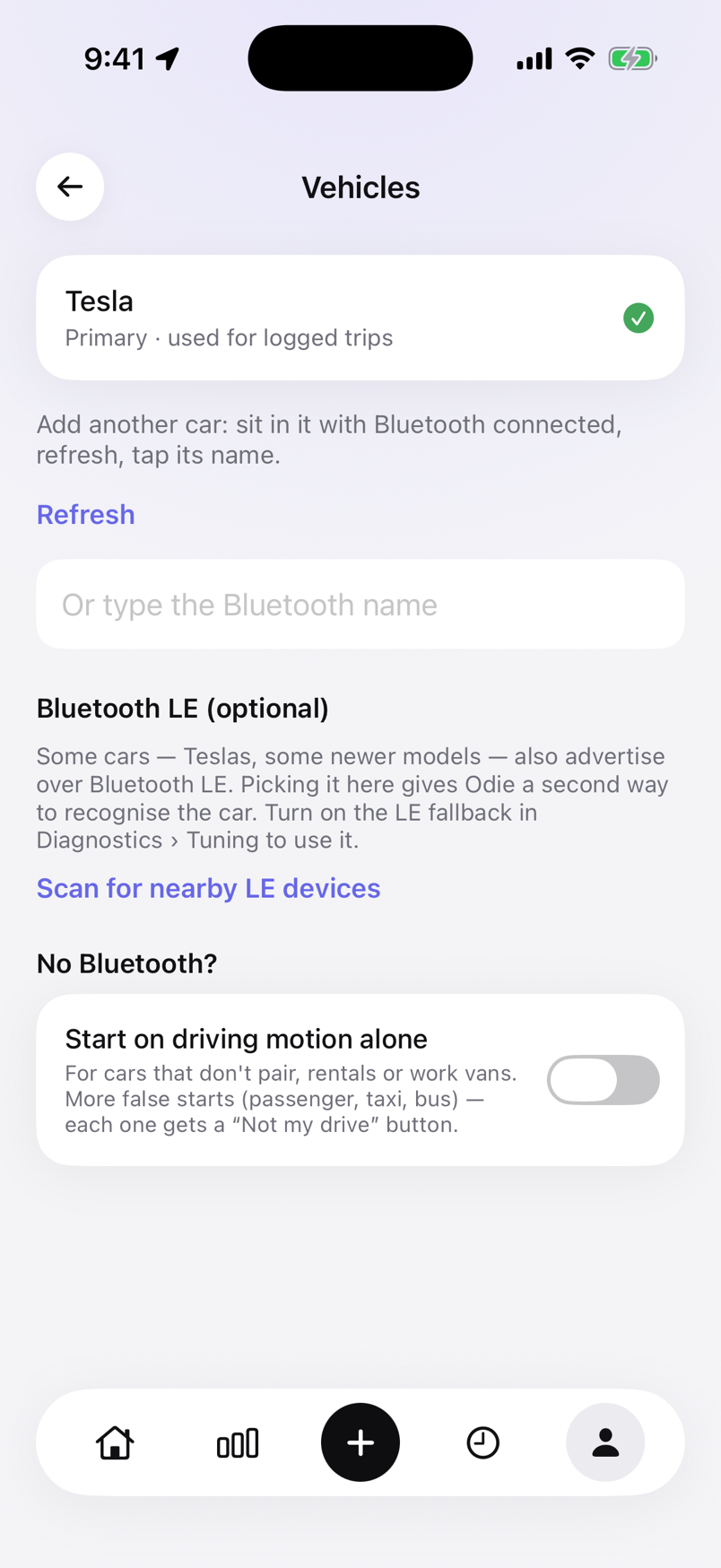
Some cars, some Teslas among them, do not expose a hands-free name. Odie offers two fallbacks. A Bluetooth LE scan can look for the car’s low-energy signal. Failing that, motion-only mode starts a trip from driving motion alone and asks you to confirm it, because motion cannot tell your car from a taxi.

What stops it

Force quitting the app from the app switcher stops background wakes until you open it again. Odie notices and tells you. Turning location permission down from Always to While Using has the same effect.

Vehicles screen listing several cars; any of them starts a trip.

2. Classify

One tap, or one swipe.

When a trip ends, a notification shows the distance and the endpoints and offers Work and Personal. In motion-only mode there is a third button, Not my drive, which discards it. In the list, swipe right for Work and left for Personal.

Suggestions, without surprises

Odie can suggest a purpose. It uses two rules, in order: a saved place tagged Work or Personal (your office, your client’s site), then a route you have classified the same way at least twice. A suggestion shows as a label such as “Looks like Work” and still takes one tap to confirm. Nothing is filed without you. You can turn suggestions off in Work settings.

Clients and places

Save places with a radius so trips read “Home → Client site” instead of street addresses. Tag a work trip with a client or project and the year report totals each client separately.

3. Fix what needs fixing

Logs are edited by people.

Forgot the phone, lent the car, took a rental? Log a trip by hand. Type two addresses and Odie fills in the driving distance and route from Apple Maps, with a round-trip switch. Saved places are one tap.

Two trips that should be one can be merged if they are within 45 minutes of each other. One trip that should be two can be split by dragging a point along the route. Start and end times, endpoints, notes and the vehicle are all editable.

If Odie saw driving motion but never saw your car, it keeps a note of the time and the rough endpoints and offers a prefilled manual trip, so a missed trip takes seconds to recover.

Trip in progress

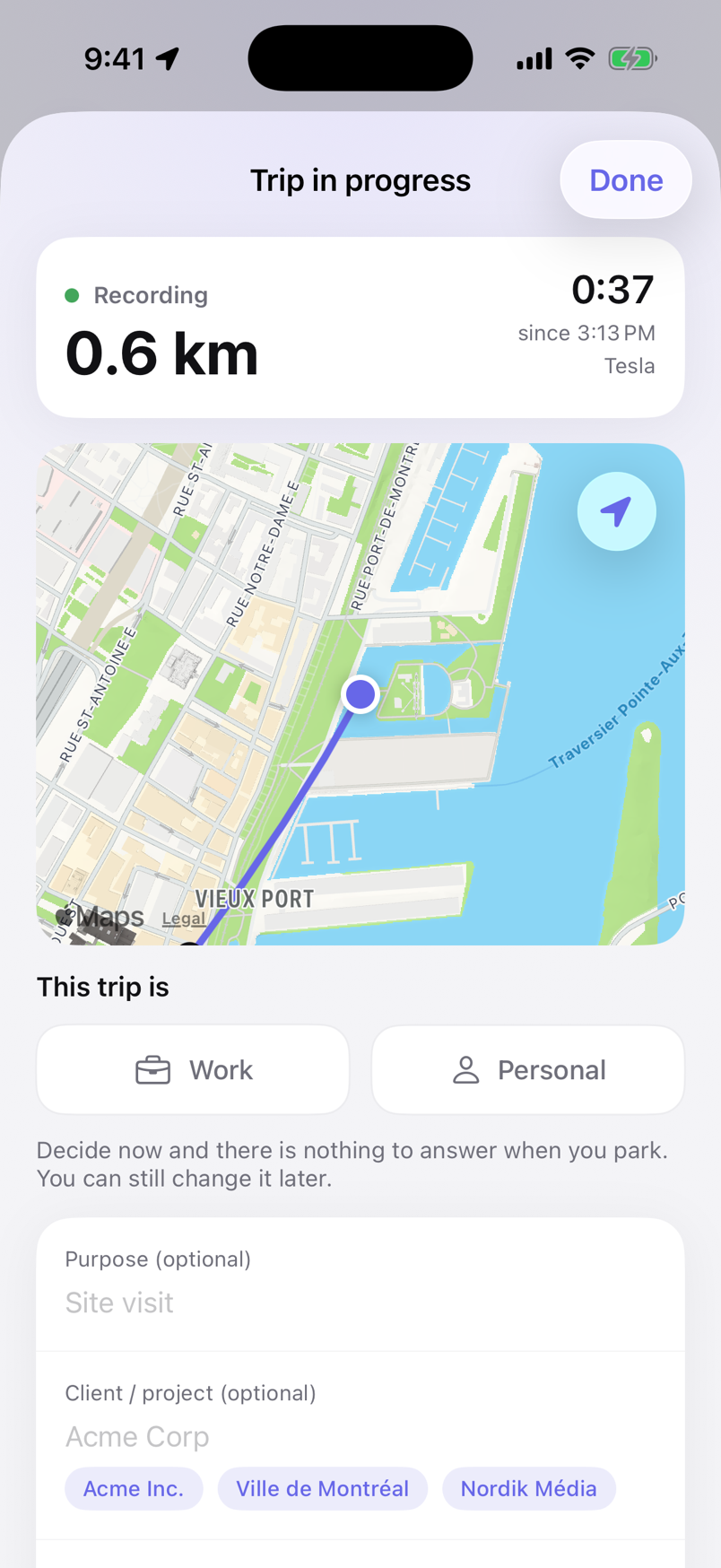
While a trip is recording, the Home screen shows a Recording card with the distance so far. Tap it, the Live Activity on the Lock Screen or the Dynamic Island, or the “Recording trip” notification, and you get the live trip: the route so far, distance and timer, and tiles to mark it Work or Personal now. You can add a purpose, a client, a note and a receipt (gas, charging, parking, a toll) before you park, and there is nothing left to answer when the trip ends. An End trip button is there too, though Odie ends the trip by itself a few minutes after you park.

Trip in progress: the route so far on a map, the distance and timer, Work and Personal tiles, and a button to add a receipt.

4. Expenses and odometer

Fuel, charging, parking, tolls, maintenance.

Each expense has a category, an amount, an optional quantity (litres for gas, kWh for charging) and a receipt photo from the camera or your library. Entering the odometer at a fill-up also records an odometer reading. The expense screen shows spending over time, the share per category and your average cost per litre or per kWh.

Two ways to count expenses

Employees reimbursed by an employer usually claim expenses incurred on work trips, so Odie can tie an expense to a trip. Self-employed people in Canada deduct a business-use share of all vehicle expenses, so Odie can instead apply your business-use percentage, worked out from work kilometres over total kilometres (preferring the odometer when you have entered readings) or typed in by hand. The report shows gross, share and deductible.

Odometer readings

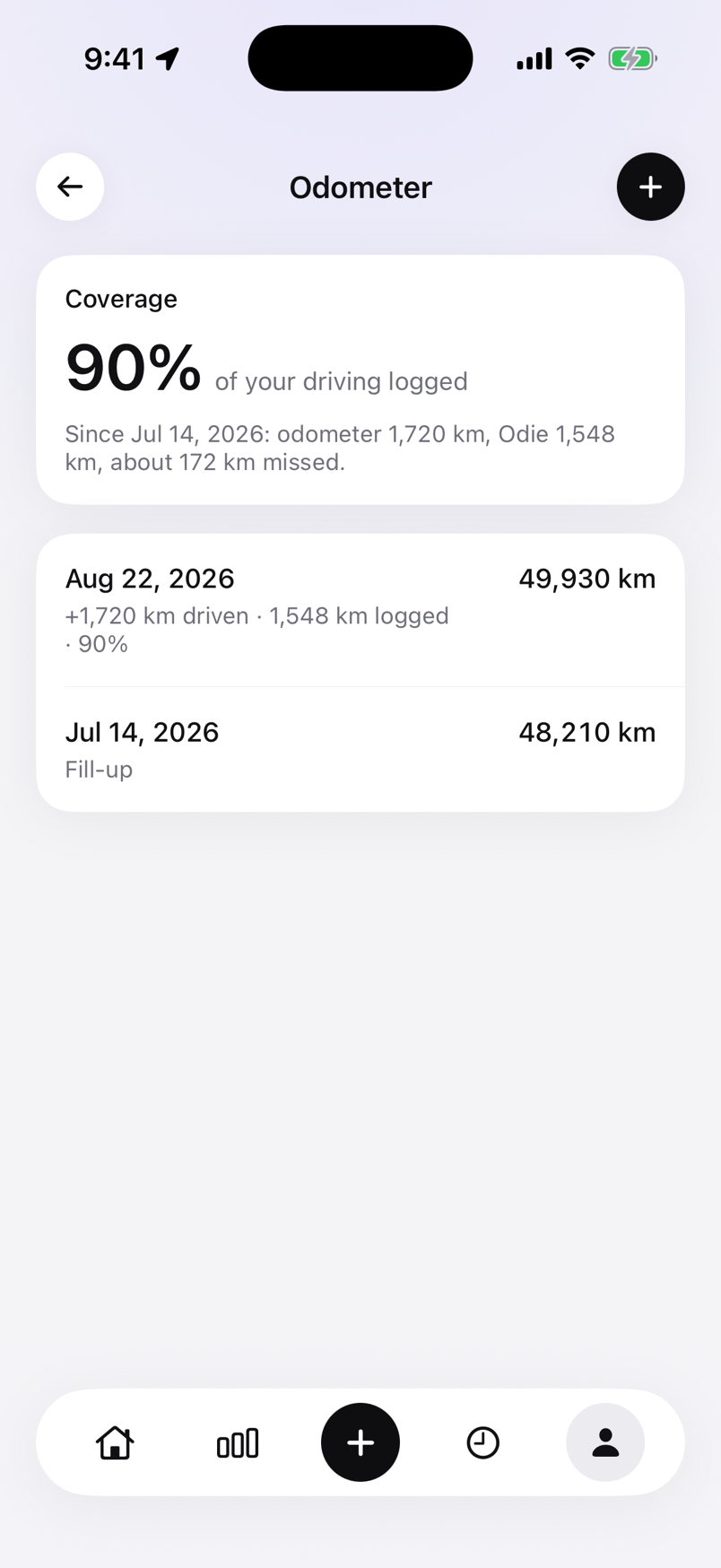
Enter a reading whenever you like. Odie uses the first and last readings of the year as the bounds the CRA asks for, and compares odometer distance to logged distance to tell you what percentage of your driving is in the log.

Odometer screen with dated readings and the share of driving that was logged.

5. Report

One PDF in March.

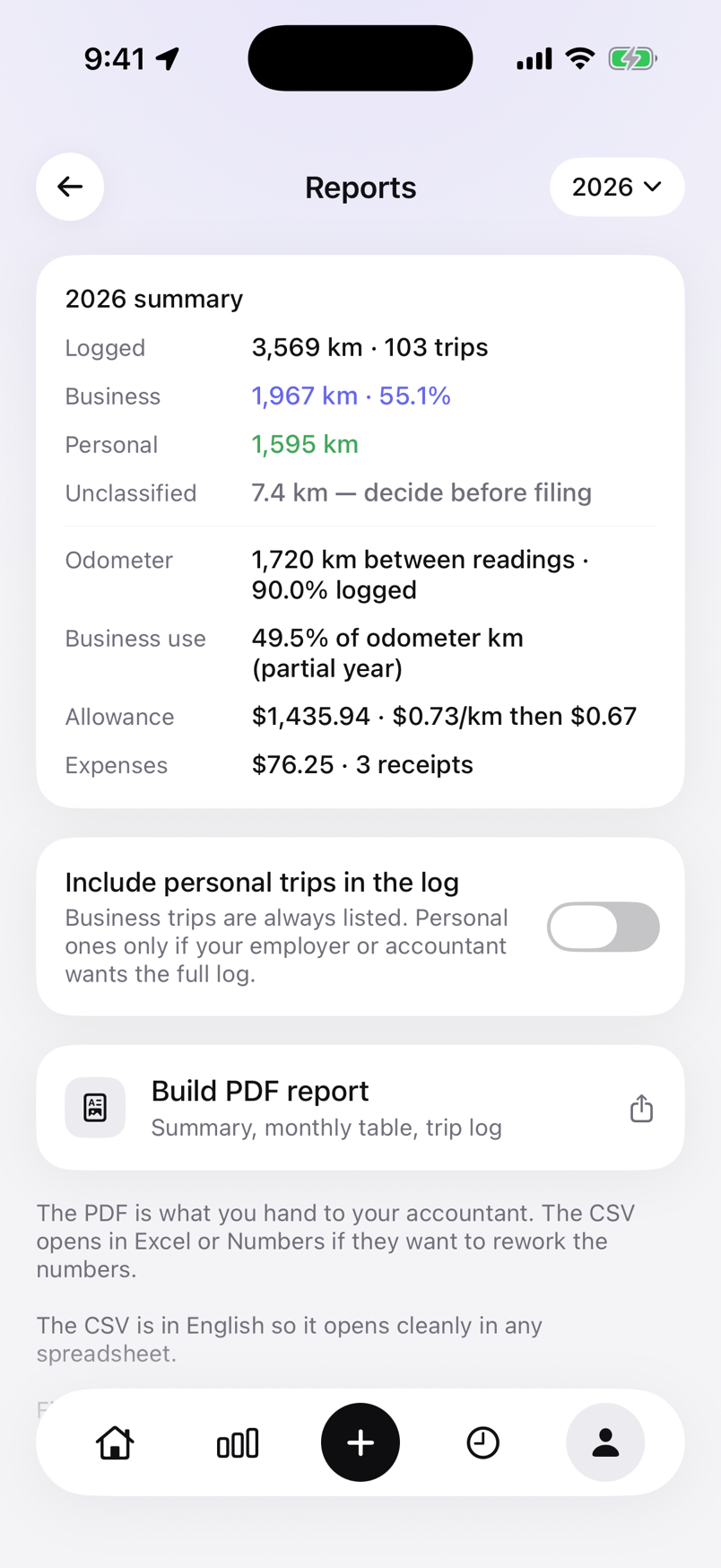
Pick a year and, if you have several cars, a vehicle. The PDF contains a summary, a monthly table, a per-client table, business expenses, the business trip log and the odometer bounds. The Allowance line shows the formula it used, kilometres at each rate that applied. Under the business-use method it also shows gross expenses, your share and the deductible amount. Personal trips are left out unless you switch them on. The footer of every page reads “Estimates for record keeping, not tax advice. Rates: CRA and IRS publications.” The CSV is in English so it opens cleanly in any spreadsheet.

The same year exports as CSV. A separate full export writes every trip with coordinates, and a JSON backup holds trips, places, readings, expenses, vehicles and settings for moving to a new phone. Importing a backup merges by id, so nothing is duplicated.

Rates

Three schemes: CRA, IRS and custom. CRA and IRS carry a dated rate table for 2024 to 2026, taken from canada.ca and irs.gov and checked on August 23, 2026. The CRA table has the two tiers (first 5,000 km per calendar year, then the rest, applied in date order across all vehicles) and a Territories switch that adds 4¢ to each tier for Yukon, the Northwest Territories and Nunavut. The IRS table is per mile and knows the two 2026 periods. Each trip is priced at the rate in force on its date, so a 2025 report uses the 2025 figures, and the report names the rate it used, such as “CRA rate, 2026 tiers” or “IRS rate, Jul to Dec 2026”. If your employer pays a different rate, an override replaces the current year’s rate only. The custom scheme takes your own rate per kilometre or mile, an optional second tier with its threshold, and a label.

Kilometres times the CRA rate is an employer allowance estimate, not a deduction: employees with a T2200 deduct actual costs times employment use, and the self-employed deduct actual costs times business km over total km on T2125, which is what the business-use method is for. In the US, W-2 employees cannot deduct mileage; the IRS rate serves the self-employed and employer reimbursements. Home and Trends show the figure as “Allowance estimate” with the basis under it (“km × CRA allowance rate, 2026 tiers”), or “Deduction estimate” under the business-use method. Currency can be CAD, USD, EUR or GBP. Distances are stored in metres, so switching between kilometres and miles loses nothing. The current official figures are on the CRA and IRS pages.


Reports screen for 2026 with the summary, the allowance estimate and a Build PDF report button.

6. Where the data lives

On your phone, and optionally in your iCloud.

Trips, places, readings and expenses are stored in a local database on the iPhone. Receipt photos are stored as files next to it. If iCloud sync is on (it is by default, and you can turn it off in Backup settings), the same records are mirrored to your private iCloud database, the part of iCloud only your Apple account can read. Odie has no server and no network code of its own. The Apple services it does call are Maps search and directions when you log a trip by hand, map snapshots for the route thumbnails, reverse geocoding for place names, and CloudKit for sync.

Widgets read a small summary (this month’s kilometres, the Work and Personal split, how many trips are waiting) from a shared container on the device. The Live Activity shows the running trip’s distance and timer, and tapping it opens the live trip in the app.

A diagnostics log is kept on the phone for troubleshooting. It can be viewed and exported from Settings, and it goes nowhere unless you send it.

Your next work trip can log itself.

Odie is in the final stretch before launch. Leave your email on the support page and you will hear when it ships, nothing else.

Coming to the App Store Support